8-Step Translation Guide
1
Select Language Model
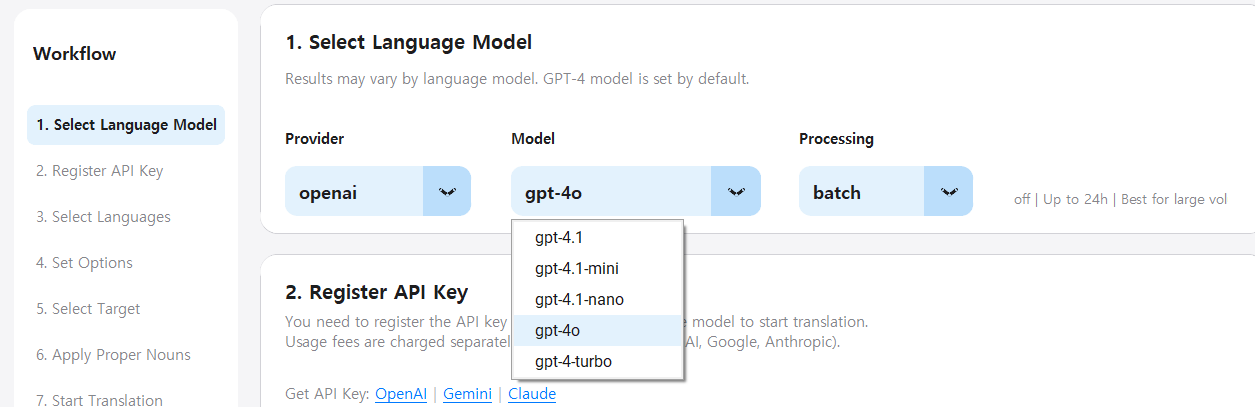
Choose the AI provider and model for translation.
- Choose Provider: Select from OpenAI, Google Gemini, or Anthropic Claude based on your API key.
- Choose Model: Select the specific model version (e.g., GPT-4o, GPT-4.1, Gemini 2.0, Claude 3.5 Sonnet).
- Processing Tier:
• Real-time: Immediate processing, higher cost
• Batch: Background processing, up to 50% cost savings (OpenAI/Claude only)
2
Register API Key
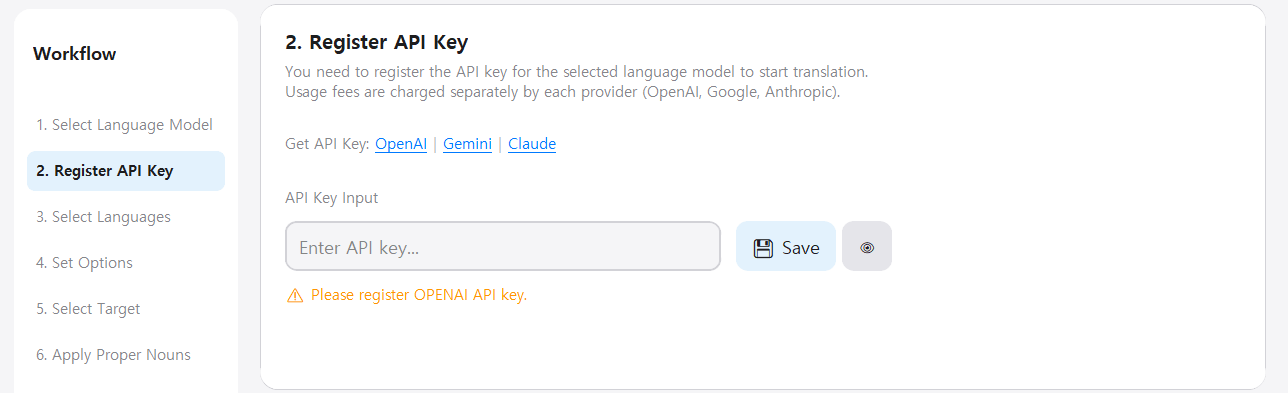
Enter the API key from your selected provider.
- How to get API keys:
- OpenAI: platform.openai.com → API Keys
- Google Gemini: aistudio.google.com → Get API Key
- Anthropic: console.anthropic.com → API Keys
- Your API keys are encrypted and stored securely on your device.
- API usage costs are billed separately by each provider (OpenAI, Google, Anthropic).
3
Select Languages
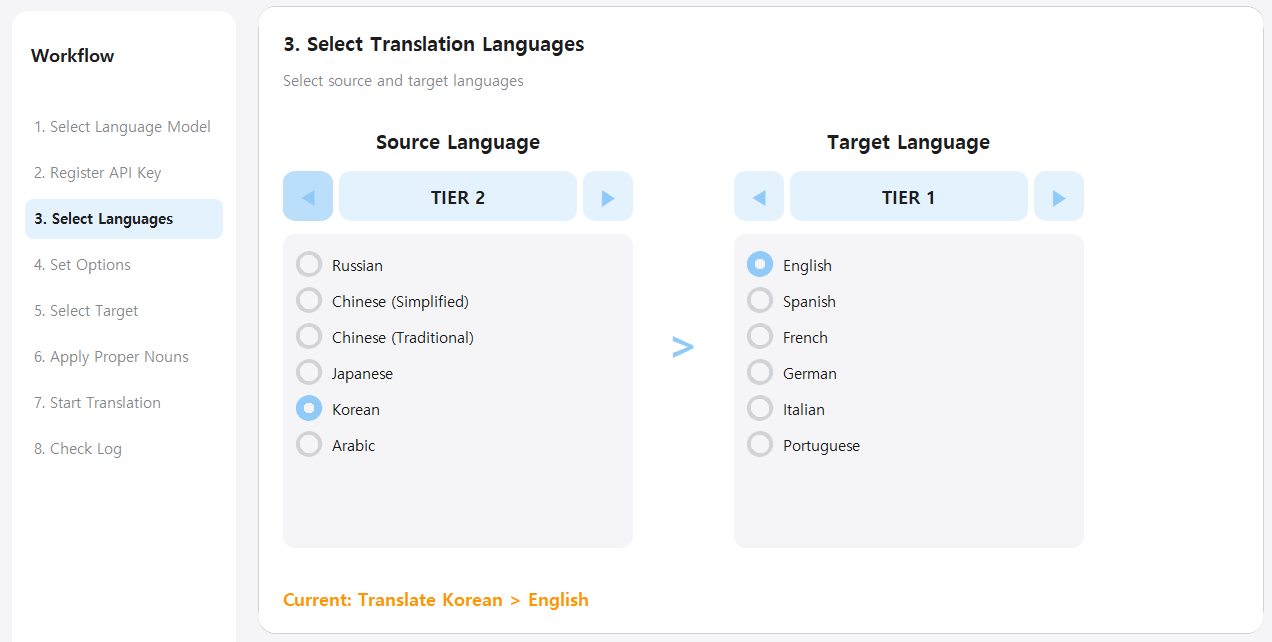
Choose the source and target languages for translation.
- Source Language (Left): Select the language of your original text
- Target Language (Right): Select the language to translate into
- 26 languages available across 4 tiers:
- TIER 1: English, Spanish, French, German, Italian, Portuguese
- TIER 2: Russian, Chinese (Simplified/Traditional), Japanese, Korean, Arabic
- TIER 3: Dutch, Polish, Swedish, Turkish, Thai, Vietnamese
- TIER 4: Danish, Norwegian, Finnish, Czech, Hebrew, Hindi, Indonesian, Malay
4
Configure Translation Options
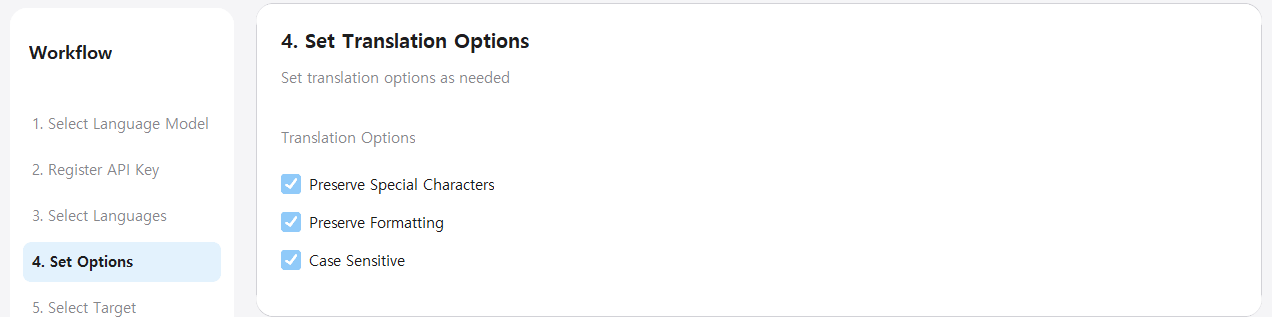
Set options to control how text is translated.
- Preserve Special Characters: Keeps format strings like %s, %d, {0}, {name} in their original positions.
- Preserve Formatting: Maintains line breaks, indentation, and whitespace from the original text.
- Case Sensitive: Recognizes and preserves patterns like CONSTANT_NAME and PascalCase.
5
Select Work Folder
Choose the folder containing your translation files.
- Click the folder select button and choose your work directory.
- All Excel files (.xlsx, .xls) in the selected folder will be automatically detected.
- Make sure your files follow the format described in the File Format Guide above.

6
Apply Glossary (Optional)
Load a glossary file for consistent terminology.
- This step is optional but recommended for game translations.
- Ensures character names, item names, and game-specific terms are translated consistently.
- The glossary file should follow the format described in the File Format Guide above.

7
Start Translation
Begin the translation process.
- After confirming all settings, click the 'Start Translation' button.
- Real-time mode: Translation happens immediately. You can see results as they complete.
- Batch mode: Translation is queued for background processing. Check status anytime with the Status button.
- You can cancel ongoing translations using the Cancel button.

8
Check Processing Log
Monitor translation progress in the log panel.
- View real-time progress including file counts and completion status.
- Any errors or warnings will be displayed here for troubleshooting.
- When complete, you'll see a summary of all processed files.